
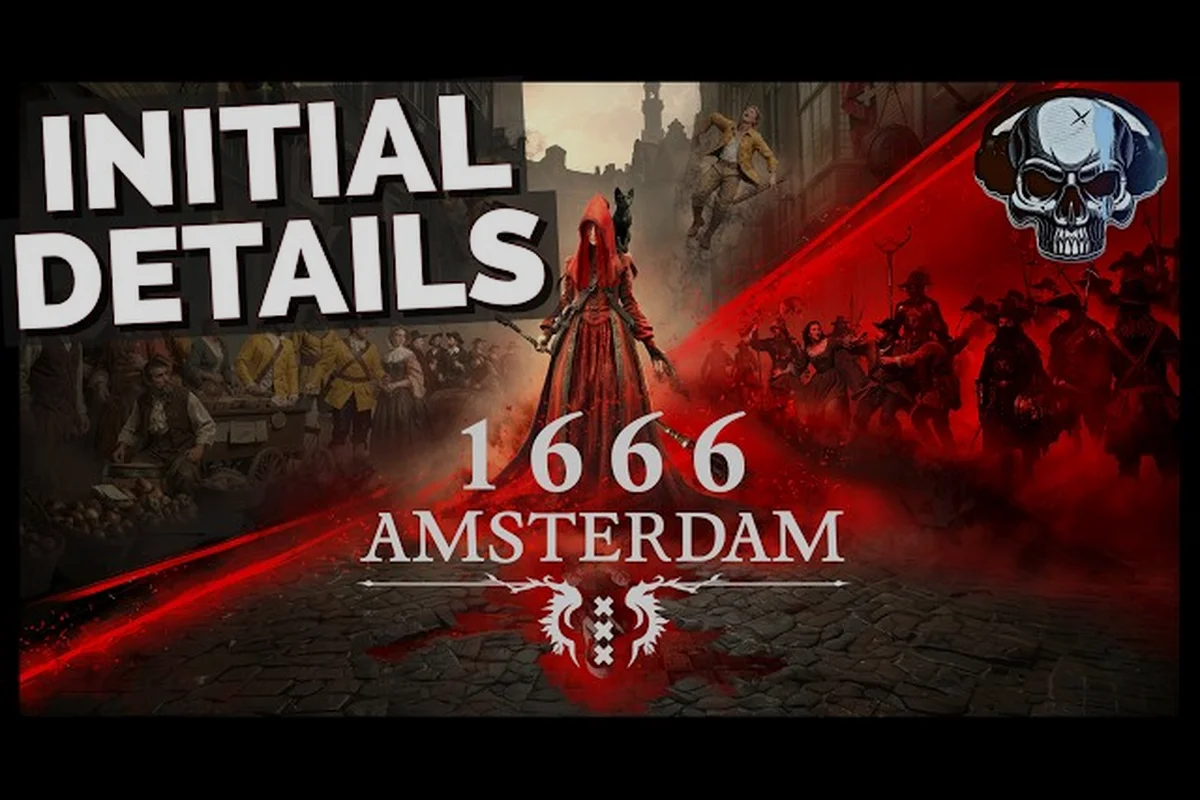
If you are planning to jump into the Early Access launch on August 25, 2026, the first thing you will want to sort out is 1666 Amsterdam fps performance, because the game's day-and-night cycle and Esbat confrontations can hammer your GPU harder than the prologue suggests. The official Steam listing confirms this is a Windows-only, third-person action-adventure built by Panache Digital Games, and community threads on the Steam hub already show players comparing frame rates on mid-range cards. This 1666 Amsterdam settings guide breaks down exactly which graphics options move the needle, which ones you can ignore, and how to lock in 60 frames without turning Amsterdam into a blurry mess.
Understanding the Performance Demands of 1666 Amsterdam fps
The game runs on Unreal Engine with a heavy reliance on volumetric lighting, wet-surface reflections, and dense crowd simulations in the handcrafted city streets. Because the investigation happens by day and the demonic Esbat confrontations happen at night, the engine has to juggle two completely different lighting models, which is why 1666 Amsterdam fps can fluctuate wildly between the two phases. According to community reports from the free prologue, players on RTX 3060-class hardware saw playable but inconsistent frame rates, especially when Noa casts witchcraft during crowded night scenes.
The key performance factors break down like this:
-
Volumetric fog and candlelight — the night scenes use dozens of dynamic light sources that each cast real-time shadows, which is the single biggest fps killer
-
Crowd density — Amsterdam's streets are populated with NPCs that have their own AI routines, and the engine renders them at full fidelity even when they are off-center
-
Wet surface reflections — the canals and rain-soaked cobblestones use screen-space reflections that scale with resolution
-
Draw distance — the handcrafted city is designed to be viewed from rooftops, which means the engine loads entire districts at once
The prologue's mixed reception on the subreddit included several threads about stuttering during the first Esbat encounter, and players noted that the game does not have a built-in benchmark tool yet. That means you will need to test settings manually, which is exactly what this 1666 Amsterdam optimization guide is built for.
Why the Night Cycle Is the Real FPS Test
The day cycle is relatively forgiving because the sun provides a single dominant light source, but the night cycle flips the scene into a candlelit maze with dozens of point lights. Each of those lights can cast soft shadows, and when you combine that with the particle effects from Noa's witchcraft, the GPU load can spike by 30 percent or more. Players on the Steam community hub reported that the night Esbat fights are where they had to drop from High to Medium presets just to keep the action readable.
What the Official Requirements Tell Us
The Steam listing does not publish minimum or recommended specs yet, which is common for Early Access titles, but the community has been sharing their hardware and results. Based on the prologue data, a GTX 1660 Super can hold 50-60 fps at 1080p on Medium settings, while an RTX 3070 can push 60 fps at 1440p with a few tweaks. This 1666 Amsterdam graphics guide assumes you are targeting 1080p or 1440p at 60 frames, because that is the sweet spot for a third-person action game where parry timing matters.
The Best 1666 Amsterdam Graphics Settings for 60 FPS
The in-game options menu is fairly standard for Unreal Engine titles, but a few settings have outsized impacts on performance. The table below ranks every major graphics option by its performance cost and visual importance, based on community testing from the prologue and the official Game Feature series on the Panache Digital Games YouTube channel.
| Setting | Performance Cost | Visual Impact | Recommended Value |
|---|---|---|---|
| Resolution Scale | Extreme | High | 100% (or 90% if GPU-bound) |
| Shadow Quality | High | Medium | Medium |
| Volumetric Fog | Extreme | High | Low |
| Texture Quality | Low | Extreme | High (VRAM permitting) |
| Screen-Space Reflections | High | Medium | Off |
| Crowd Density | Medium | Medium | Medium |
| Ambient Occlusion | Medium | Medium | Low |
| Post-Processing | Low | Low | Medium |
| Anti-Aliasing | Medium | Medium | TAA or FXAA |
| Draw Distance | High | High | Medium |
The pattern here is clear: shadow quality, volumetric fog, and screen-space reflections are the three settings that drain the most performance while offering diminishing visual returns in fast-paced combat. Texture quality, on the other hand, is nearly free on modern GPUs because it mainly taxes VRAM rather than compute, so you should keep it high if you have 6 GB or more of video memory.
The 1080p Preset That Works on Mid-Range Cards
If you are running a GTX 1660 Super, RTX 2060, or RX 5600 XT, this preset should hold a stable 60 fps in most scenes. The idea is to keep the core geometry and textures intact while stripping out the expensive lighting effects that tank 1666 Amsterdam fps during night fights.
-
Resolution Scale at 100 percent, because dropping below that makes text and UI blurry
-
Shadow Quality on Medium, which keeps character shadows readable without the soft-contact shadow cost
-
Volumetric Fog on Low, since the night scenes already have enough atmosphere from the lighting
-
Screen-Space Reflections off, because the canals look fine with the base reflection cubemap
-
Crowd Density on Medium, which keeps the streets feeling alive without rendering every single NPC
-
Anti-Aliasing on TAA, which smooths edges better than FXAA at a similar cost
The 1440p Preset for RTX 3070 and Above
For players with an RTX 3070, RX 6800, or better, you can afford to turn a few things back up while still targeting 60 fps at 1440p. The key is to keep volumetric fog and reflections in check because those scale poorly with resolution.
| Setting | 1080p Value | 1440p Value | Why It Changes |
|---|---|---|---|
| Shadow Quality | Medium | High | More pixels to resolve shadows |
| Volumetric Fog | Low | Low | Still the biggest fps cost |
| Screen-Space Reflections | Off | Off | Canals look fine without it |
| Texture Quality | High | Ultra | 8 GB VRAM handles it |
| Anti-Aliasing | TAA | TAA | Needed more at 1440p |
| Draw Distance | Medium | High | Rooftop views benefit |
1666 Amsterdam Optimization Tweaks Beyond the Settings Menu
The in-game settings only get you part of the way, because Windows-level and driver-level tweaks can unlock another 10-15 percent performance headroom. This 1666 Amsterdam optimization guide covers the external changes that community members have confirmed working during the prologue, and these apply to the full Early Access build as well. weaks can unlock another 10-15 percent performance headroom. This 1666 Amsterdam optimization guide covers the external changes that community members have confirmed working during the prologue, and these apply to the full Early Access build as well, though if you're struggling with a specific faction's unit compositions rather than raw frame rates, our 1666 Amsterdam Enemy Guide breaks down the strengths and counters for every opponent you'll face in these same early missions.
Disable Game Mode and Background Recording
Windows Game Mode and the Xbox Game Bar overlay can interfere with Unreal Engine titles by reserving resources for background recording. Players on the Steam hub reported that disabling Game Mode and turning off the Game Bar's background recording feature smoothed out frame pacing during the Esbat fights. You can do this by opening Windows Settings, navigating to Gaming, and toggling off both Game Mode and the background recording option.
Update Your GPU Drivers and Use the Right Render API
The game supports DirectX 12, and the prologue shipped with a default that some players found stuttery. According to community reports, forcing the game to use DirectX 12 explicitly via the launch options on Steam cleared up the hitching for most users. Right-click the game in Steam, select Properties, and add -dx12 to the launch options. If you have an NVIDIA card, make sure you are on the latest Game Ready driver, because Panache Digital Games has been working with NVIDIA on the Early Access optimization.
Set the Power Plan to High Performance
Laptop players in particular should check their Windows power plan, because the Balanced plan can throttle the CPU and GPU during long sessions. Switching to the High Performance plan ensures the hardware runs at full clocks when the night scenes spike the load. Desktop users with a recent BIOS should also verify that Resizable BAR is enabled, since Unreal Engine titles tend to benefit from it.
How to Measure Your 1666 Amsterdam fps Gains
You cannot improve what you cannot measure, so before you change any settings, you need a baseline. The game does not have a built-in FPS counter yet, but you can use the Steam overlay's FPS counter or a third-party tool like MSI Afterburner to track performance. The community recommends running the first Esbat encounter as your benchmark, because it is the most demanding scene in the prologue and it will be representative of the full game's night fights.
A Simple Benchmarking Routine
Follow this routine to get consistent results that you can compare across settings changes:
-
Load the game and play until you reach the first night Esbat encounter
-
Enable the FPS counter in Steam overlay settings or MSI Afterburner
-
Play the encounter twice and note the average and 1% low frame rates
-
Apply the settings from the table above and replay the same encounter
-
Compare the numbers — you want the 1% low to stay above 50 fps, not just the average
The 1% low is more important than the average because it represents the stutters and hitches that ruin combat timing. If your average is 70 fps but your 1% low is 35 fps, the game will feel choppy even though the counter looks fine.
What Frame Rate You Should Actually Target
For a third-person action game like this, 60 fps is the sweet spot because the combat relies on reading enemy tells and reacting with parries or dodges. The community reports that the game's animation system feels responsive at 60 fps, and the Esbat confrontations become noticeably harder to read below that threshold. If you cannot hit a stable 60 fps on your hardware, the next best target is 45 fps with V-Sync off, because that avoids the judder that comes from an unstable 50-55 fps range.
| Hardware Class | Target Resolution | Target FPS | Expected Preset |
|---|---|---|---|
| GTX 1660 Super / RX 5600 XT | 1080p | 60 | Medium with tweaks |
| RTX 3060 / RTX 2060 Super | 1080p | 60 | High with tweaks |
| RTX 3070 / RX 6800 | 1440p | 60 | High with tweaks |
| RTX 4070 / RX 7800 XT | 1440p | 60+ | Ultra with tweaks |
| RTX 4080 / RX 7900 XTX | 4K | 60 | High with DLSS/FSR |
Advanced 1666 Amsterdam graphics guide: Scaling and Upscaling Options
If you are on an RTX card, you have access to DLSS, and if you are on an AMD card, FSR is available. These upscaling technologies render the game at a lower internal resolution and then upscale it, which can dramatically boost 1666 Amsterdam fps without a huge visual penalty. The prologue shipped with both options, and community testing suggests that DLSS Quality mode at 1440p looks nearly identical to native 1440p while delivering a 20-30 percent frame rate improvement.
DLSS vs. FSR vs. Native Rendering
The choice between DLSS, FSR, and native rendering depends on your hardware and your tolerance for visual artifacts. DLSS is generally considered the better technology because it uses AI-based reconstruction, but it only works on RTX cards. FSR is more universal and works on any GPU, but it can introduce shimmering on thin objects like the wrought-iron railings that line Amsterdam's canals.
| Technology | Best For | Quality Mode FPS Gain | Visual Tradeoff |
|---|---|---|---|
| DLSS Quality | RTX 3060 and above | 20-30% | Minimal, nearly native |
| DLSS Balanced | RTX 2060 and above | 30-40% | Slight softness |
| FSR Quality | Any GPU | 15-25% | Shimmer on thin edges |
| Native TAA | Any GPU | Baseline | Sharpest but slowest |
When to Use Upscaling vs. Lowering Settings
The general rule is to use upscaling before you lower internal resolution, because upscaling preserves more detail than dropping the resolution scale. If you are on an RTX 3060 at 1440p and cannot hit 60 fps with the High preset, try DLSS Quality mode before you drop to Medium. If you are on a GTX card without DLSS, FSR Quality is the next best option, and only if that is not enough should you start lowering the expensive settings like volumetric fog and shadows.
Frequently Asked Questions
What is the single best setting to change for 1666 Amsterdam fps?
Volumetric Fog is the highest-impact setting because the night scenes rely on dozens of dynamic candlelight sources, and the fog simulation multiplies the cost of each one. Dropping it from High to Low can recover 10-15 fps on mid-range cards, and the visual difference is barely noticeable during fast combat.
Will the Early Access version have better optimization than the prologue?
Panache Digital Games has confirmed through the Steam community hub that Early Access includes performance passes, and the developer has acknowledged the prologue's mixed reception on the subreddit. Community reports suggest the full build has improved frame pacing, but the night Esbat scenes remain the most demanding, so the settings in this guide should still apply.
Does 1666 Amsterdam support DLSS and FSR?
Yes, the prologue shipped with both DLSS and FSR support, and the Early Access build retains them. DLSS Quality mode is recommended for RTX users because it delivers the best visual fidelity per frame rate gain, while FSR Quality works well on any GPU if you are willing to accept minor shimmer on thin objects.
Is 60 fps necessary for the Esbat combat encounters?
The combat system relies on reading enemy tells and timing parries, and community testing shows that the animations become noticeably harder to read below 50 fps. A stable 60 fps is the recommended target, but if your hardware cannot reach it, prioritize keeping the 1% low above 45 fps rather than chasing a higher average.
Should I use the High Performance power plan on a desktop PC?
Yes. Windows Balanced can downclock your CPU and GPU during the short load spikes in 1666 Amsterdam's day/night investigation loop, causing micro-stutters during Esbat confrontations. High Performance keeps clocks pinned, and the extra power draw is negligible on desktop. Test it with the in-game benchmark before and after to confirm your gains.